
To use a copy machine, place your original face down on the glass (or face up in the document feeder), tap Copy on the touchscreen, choose the number of copies and any settings like two-sided or color, then press Start. Your copies come out in the output tray. The steps below cover the settings you’ll use most, how the copy process works, and what to do when something goes wrong.
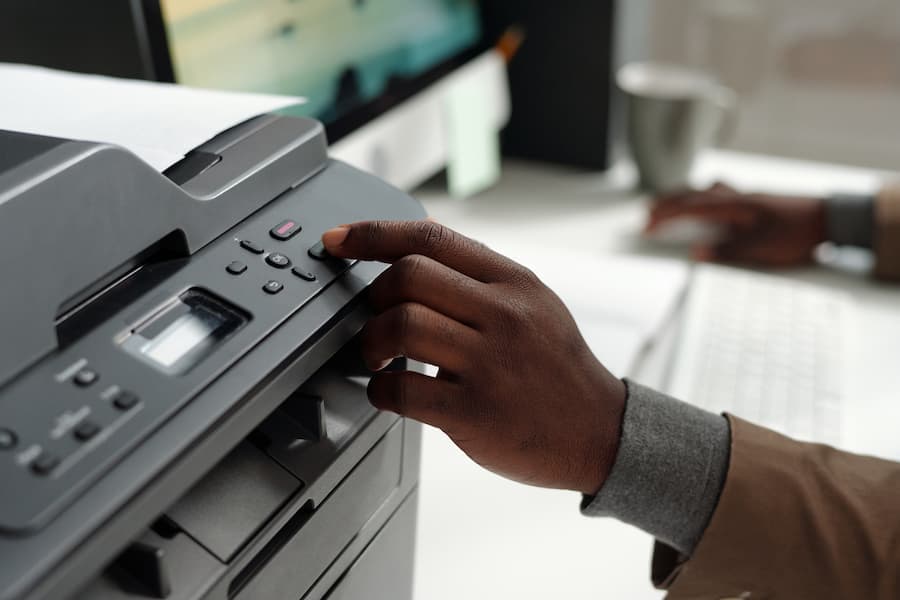
How to use a copier, step by step
- Wake the copier. Tap the screen or press the power or energy saver button. If your office uses login, enter your code or tap your badge.
- Load your original.
- Document feeder (on top): stack pages face up, top edge first, and slide the guides against the edges. Best for multi-page documents.
- Glass: lift the lid and place the page face down, aligned with the arrow in the corner. Best for books, receipts, or fragile and odd-sized pages.
- Tap Copy on the home screen.
- Enter the number of copies using the keypad.
- Choose your settings (see below).
- Press Start, usually a large green or blue button.
- Collect your copies and your original. It’s easy to leave the original on the glass.
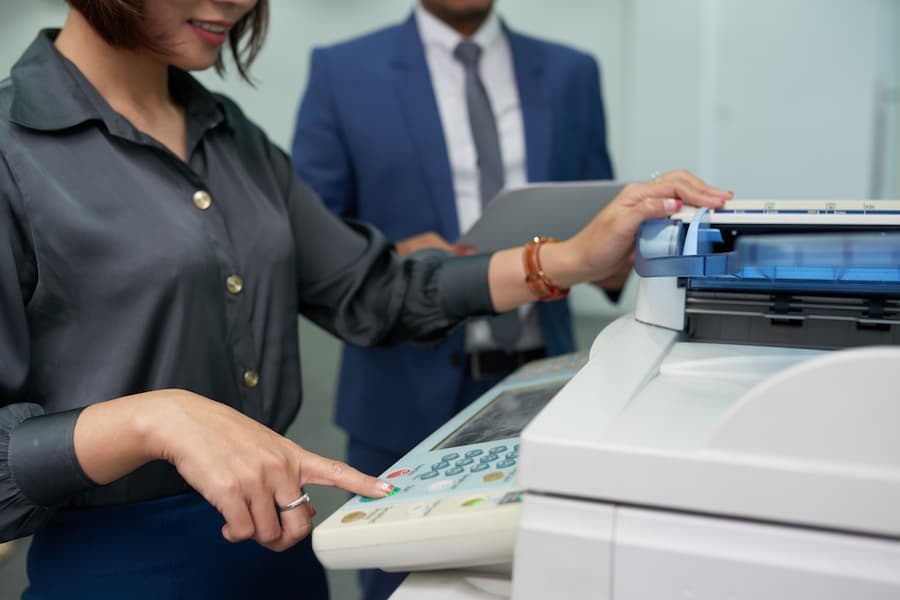
Copier settings you’ll use most
| Setting | What it does |
|---|---|
| Color / Black & White | Black-and-white is cheaper; use color only when it matters |
| 2-sided (duplex) | 1→2 copies one-sided originals onto both sides of the paper; 2→2 copies two-sided originals |
| Paper size / tray | Letter, legal or 11×17, and which tray to pull from |
| Reduce / Enlarge | Shrink or enlarge, for example legal to letter |
| Darkness / density | Lighten or darken faint or dark originals |
| Original type | Text, photo or mixed, for the best quality |
| Collate / Sort | Prints complete sets in page order |
| Staple / Finishing | Staples, hole-punches or folds sets if your copier has a finisher |
How the photocopy process works
Most office copiers are digital and work much like a laser printer:
- Scan: a light bar moves under the glass and a sensor captures an image of your original.
- Process: the copier applies your settings, like size, darkness and two-sided.
- Print: a laser draws the image onto a charged drum, toner sticks where the laser drew, and the toner transfers to paper.
- Fuse: heat and pressure melt the toner into the paper, so copies come out dry.
Because a modern copier scans first, the same machine can also scan to email or a folder. See how to use a scanner.
Troubleshooting common copier problems
Paper jam
Follow the diagrams on the screen, which show which door to open. Pull jammed paper out gently in the direction it travels. Read more about paper jam causes and fixes.
Lines or spots on copies
Clean the glass, and the thin glass strip beside it if you use the document feeder, with a soft lint-free cloth.
Copies too light or too dark
Adjust the darkness setting. If all copies are faint, toner may be low.
“Replace toner” or an error code
Install a new toner cartridge, or note the error code and call your copier service provider.
Copier etiquette for shared offices
- Reset the settings to default when you finish.
- Refill paper if you used the last of it.
- Report jams and error messages instead of walking away.
- Pick up your copies and original right away, especially confidential ones.
Frequently asked questions
How do I make a double-sided copy?
Choose 2-sided or Duplex in the copy settings, select 1→2 for single-sided originals, then press Start.
How do I copy an ID card on one page?
Most copiers have an “ID Card Copy” mode that copies the front and back onto one side of a page. Look for it in the copy menu.
Why does the copier ask for a code?
Many offices use codes or badges to track usage by department and keep the copier secure.
Need a copier that’s easy to use?
Modern copiers with simple touchscreens, one-touch presets and reliable document feeders make copying painless. Titan Office Solutions leases and services copiers across North Carolina, South Carolina and Virginia, including setup and staff training. Explore copier leasing or get a free quote.