
Why is My Printer Not Printing?
If you’ve ever found yourself frustrated with your printer not working just when you need it, you’re not alone. A printer can malfunction for several reasons, from hardware problems and connection issues to software glitches. Understanding the possible causes of your printer issues will save time, and having practical solutions at hand can make a big difference.
Whether your printer isn’t printing at all or is spitting out faded prints, this guide covers everything from fixing common printing problems to troubleshooting cartridge issues and beyond.

Hardware and Connectivity Issues That May Affect Printing
Printer Not Turned On or Connected
One of the most common reasons why your printer may not print is that it isn’t turned on or is not properly connected to the power source. Before attempting any complex troubleshooting, ensure that the printer is powered on and that all cables are securely connected to the power source. If you’re using a USB connection, check that the cable is functional and connected to both the printer and computer.
For wireless printers, confirm that the printer is connected to the correct Wi-Fi network. If your printer is too far from the router, this could weaken the signal and prevent the printer from functioning properly. Printers require a stable connection to operate efficiently, so double-check the network signal strength and try to print after ensuring the connection is stable. If necessary, you can restart both the printer and router to refresh the connection.
USB and Wireless Connection Problems
If your printer is connected to your computer via a USB cable, ensure the cable is firmly plugged into both devices. Try using another USB port or cable, as faulty ones can cause connection disruptions. If you’re using a wireless printer, make sure both your printer and computer are connected to the same Wi-Fi network.
Often, network problems are the root cause of printing issues, especially when the printer is too far from the router, causing a weak signal. Turn the printer off and on again to reset the connection, and check the printer back online status. For new printer installations, click “Add Device” in your computer’s settings and follow the prompts to add the printer to your list of available devices.
Printer Queue Issues
Another common issue that may prevent your printer from working properly is a backlog of print jobs stuck in the queue. A jammed print queue can block new documents from printing the document you want. To clear the queue, go to the “Printers” settings, select your printer, right-click, and choose “See what’s printing.”
From there, remove any stuck print jobs by selecting and deleting them. This should get your printer back to working condition. If the queue is clear and the printer still won’t print, try to print again after restarting both the printer and computer.
Troubleshooting Printer Settings and Adding a Printer
If you’ve recently installed a new printer, you may need to add it manually to your system’s list of devices. In your computer’s settings, go to “Printers & Scanners,” click “Add Device,” and follow the instructions to add the new printer. Make sure the printer manufacturer’s drivers are installed correctly and updated. Additionally, select your printer as the default device to avoid sending print jobs to the wrong destination.
Also, be sure to check the type of paper you’re using, as some printers require specific types of paper to operate correctly. Removing the paper and reloading it properly can resolve some paper-feed issues. Once everything is set, try printing the document again to confirm that the printer is working correctly.
Software-Related Printer Problems
Outdated or Corrupted Printer Drivers

Drivers are critical software that allows your computer to communicate with the printer. If your printer drivers are outdated or have become corrupted, it can cause printing problems such as the printer not responding, not recognizing jobs, or even printing black pages.
To fix this, visit the manufacturer’s website to download and install the latest printer drivers. Make sure to choose the version compatible with your operating system, whether it’s Windows 10, Windows 11, or Mac OS.
Printer Software Corruption
Another frequent issue is corrupted printer software, which may prevent the printer from processing jobs correctly. If you suspect that the printer software is causing the problem, it may be necessary to uninstall and reinstall the printer software. Uninstalling the software and reinstalling a fresh copy from the manufacturer’s website can often resolve the issue, allowing your printer to function normally.
Print Spooler Malfunctions
The print spooler is responsible for managing all print jobs that are sent to the printer. If the spooler crashes or becomes overwhelmed with too many print jobs, it can lead to delays or failure to print.
What is a Print Spooler?
A print spooler is a service that temporarily stores print jobs until your printer is ready to process them. If this service fails, your print jobs can remain stuck in the queue, causing the printer not to print. Restarting the print spooler can often resolve this issue.
How to Restart the Print Spooler
You can restart the print spooler by accessing the Services menu in Windows. Simply search for “Services,” locate the Print Spooler service, and select “Restart.” This will clear any jobs stuck in the queue and restore your printer’s ability to print new documents.
Common Printer Maintenance and Cartridge Troubleshooting
Ink and Cartridge Problems
Low or empty ink cartridges are one of the most common reasons for a printer to stop printing. If your printer is producing faded prints or not printing at all, it’s worth checking the ink levels. Most modern printers have a built-in system to alert you when your ink is low, but it’s always a good idea to manually check the levels from time to time.
If the cartridge is empty or close to empty, replacing the cartridge will usually solve the issue. However, make sure that you are using the correct cartridge for your printer model, as incompatible cartridges can also cause printing problems.
Print Head Cleaning for Clogged Nozzles
Clogged print heads are another common issue that can lead to problems such as streaky or faded prints. This issue is particularly common in inkjet printers. Most printers offer a built-in print head cleaning feature, which you can access through the printer settings.
Running a cleaning cycle can remove dried ink and improve print quality. If the problem persists after a few cleaning cycles, you may need to manually clean the print heads using a cleaning solution.
Replacing Cartridges for Consistent Performance
If you have recently installed a new ink cartridge, but the printer still isn’t working, make sure the cartridge is properly installed. Removing and reinserting the cartridge can often solve this issue. For those using third-party cartridges, ensure they are compatible with your printer model, as some printers only accept manufacturer-approved cartridges.
Advanced Troubleshooting for Printer Not Printing
Printer Printing Only in Black
If your printer is only printing in black ink despite choosing color options, the issue may lie in the print settings or a clogged color print head.
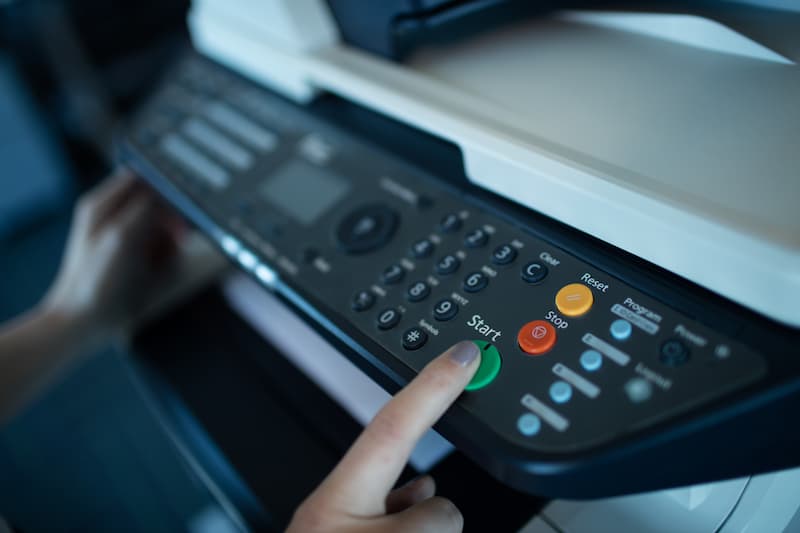
Double-check that you have selected color printing in the print settings. If the settings are correct, but the printer is still only producing black prints, perform a print head cleaning to remove any clogs that might be preventing the printer from using colored ink.
Paper Jam Solutions and Printer Queues
Paper jams can be a frequent culprit in preventing a printer from working. Gently remove any stuck paper from the paper tray, and make sure there are no small pieces left inside the printer. It’s also a good idea to clean the rollers to prevent future jams. For wireless printers, paper jams may sometimes affect the printer queue, causing jobs to get stuck. Clearing the queue and restarting the printer can resolve this problem.