
To fax from a printer, you need an all-in-one printer with a fax feature connected to a phone line. Load your document in the feeder or on the glass, tap Fax, enter the fax number (with 1 and the area code if needed), and press Send or Start. If your printer has no fax feature or you don’t have a landline, you can still fax using an online fax service. The steps below cover faxing from a printer, from a computer, and from a traditional fax machine, plus how to receive faxes and fix common problems.
What you need to fax from a printer
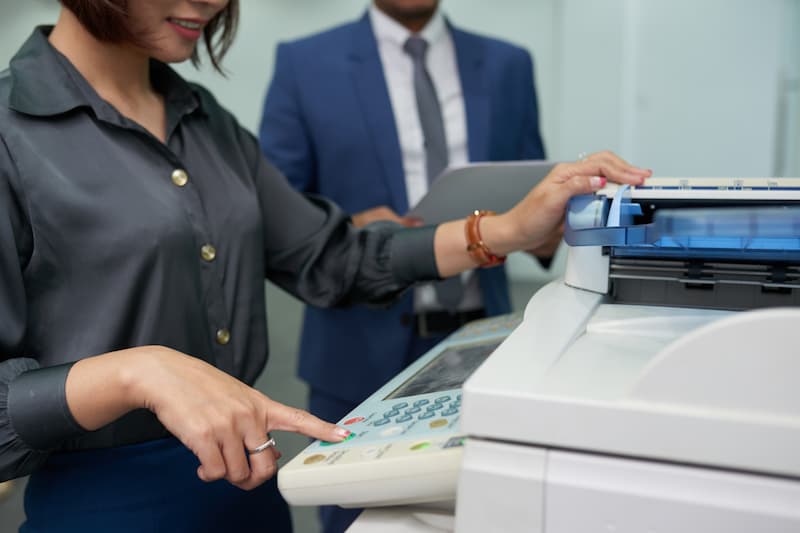
- A fax-capable printer. Look for “fax” in the model’s features or a Fax icon on the control panel. Most office multifunction copiers and many all-in-one inkjets can fax.
- A phone line. An analog landline plugged into the printer’s port marked “LINE”. VoIP lines can work, but fax over VoIP is less reliable.
- The recipient’s fax number, including the area code.
How to send a fax from a printer, step by step
- Connect the phone line to the printer’s LINE port (first time only).
- Run the fax setup on the printer’s screen: set the date, time, your fax number and your company name for the fax header (first time only).
- Load your document face up in the document feeder, or face down on the glass for a single page.
- Tap Fax on the home screen.
- Enter the fax number. Add 9 first if your office phone system needs it for an outside line, and 1 plus the area code for long distance.
- Adjust settings if needed: resolution (Fine for small text), and two-sided originals.
- Press Send or Start. Print a confirmation report if you need proof the fax went through.
How to fax from your computer (print to fax)
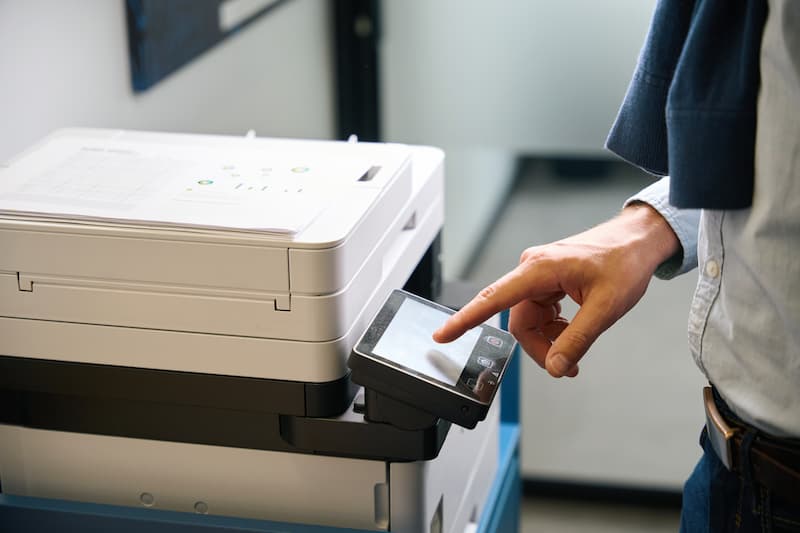
If your printer is connected to your computer and has a fax feature, you can fax a file without printing it first:
- Windows: open the file, choose Print, select your printer’s fax driver (often listed as the printer name with “Fax”), enter the fax number and send. You can also use the built-in Windows Fax and Scan app.
- Mac: choose Print, select the fax-capable printer if its driver supports fax, enter the number and send.
- Online fax services: many offer a print-to-fax driver, so you send faxes from the Print menu without any fax hardware.
How to send a fax from a fax machine
- Place the document in the feeder, usually face down on standalone fax machines (check the icon on the tray).
- Dial the fax number on the keypad.
- Press Start or Send.
- Wait for the confirmation beep or report.
How to fax without a phone line
Online fax services let you send and receive faxes by email, web portal or app, and give you a fax number without a landline. Many copiers can also scan to email, so you can scan a document and attach it to an online fax. This is often cheaper than keeping a dedicated fax line. See how to scan a paper on a printer.
How to receive a fax on your printer
- Set the printer to auto answer if the line is dedicated to faxing.
- If the line is shared with a phone, set the number of rings before the printer answers, or use distinctive ring if your phone company offers it.
- Keep paper and toner or ink loaded so incoming faxes print.
- Many office copiers can forward received faxes to email or a shared folder instead of printing them.
Troubleshooting common fax problems
| Problem | Try this |
|---|---|
| No dial tone | Check the cord is in the LINE port and test the wall jack with a phone |
| Fax fails partway through | Lower the fax speed (often called ECM or modem speed) in fax settings, especially on VoIP lines |
| Recipient gets blank pages | Load the document the right way up for the feeder or glass |
| Faxes aren’t received | Turn on auto answer and check the rings-to-answer setting |
| Poor quality | Use Fine or Photo resolution and clean the scanner glass |
Faxing securely
Fax is still common in healthcare, legal, real estate and finance because it’s a direct point-to-point transmission. To protect sensitive faxes, use a cover sheet, confirm the number before sending, place the receiving machine where only authorized staff can reach it, or route incoming faxes to a secure inbox. Read more about secure printing solutions.
Frequently asked questions
Can any printer send a fax?
No. Only printers with a built-in fax modem can fax directly. Check for a fax icon, a phone line port, or “fax” in the model’s specifications.
Do I need a phone line to fax from my printer?
To fax directly from the printer, yes. Without a phone line, use an online fax service and send documents by email or app.
How do I get a fax number for my printer?
Your printer’s fax number is the phone number of the line plugged into it. If you don’t have a dedicated line, an online fax service can give you a fax number.
Can I fax from my phone?
Yes, with an online fax app. Scan or photograph the document and send it to any fax number.
Copiers that make faxing simple
Modern office multifunction copiers fax, scan, copy and print from one touchscreen, and can send incoming faxes straight to email. Titan Office Solutions leases and services copiers across North Carolina, South Carolina and Virginia, including fax setup. Explore copier leasing or get a free quote.